
Models & Credits
Choose available models, understand generation costs, and use your workspace's shared credits
Generation uses a model and spends credits. This guide covers the model picker, costs and the balance that funds your generations.
Part of: Asset Library (Create)
Free and Paid model access
Free gives you a limited selection of starter models in a shared workspace, with no card required or time limit. Eligible new accounts receive starter credits once, with no expiry or monthly reset.
Paid unlocks the full supported image and video model catalogue, recurring shared credits and access to additional credit packs. Workspace policies, member permissions and provider-specific requirements can still restrict a model. Advanced Creation Rights requires an eligible Paid workspace, separate approval and separate pricing.
Use Pricing for current prices, allowances and credit terms. Running out of Free starter credits does not remove access to your workspace or projects.
Opening the model picker
In the Generator bottom bar (labelled Shot Director), click the button showing the current model name and icon. A dropdown lists every model available to you in the active mode (Image or Video).
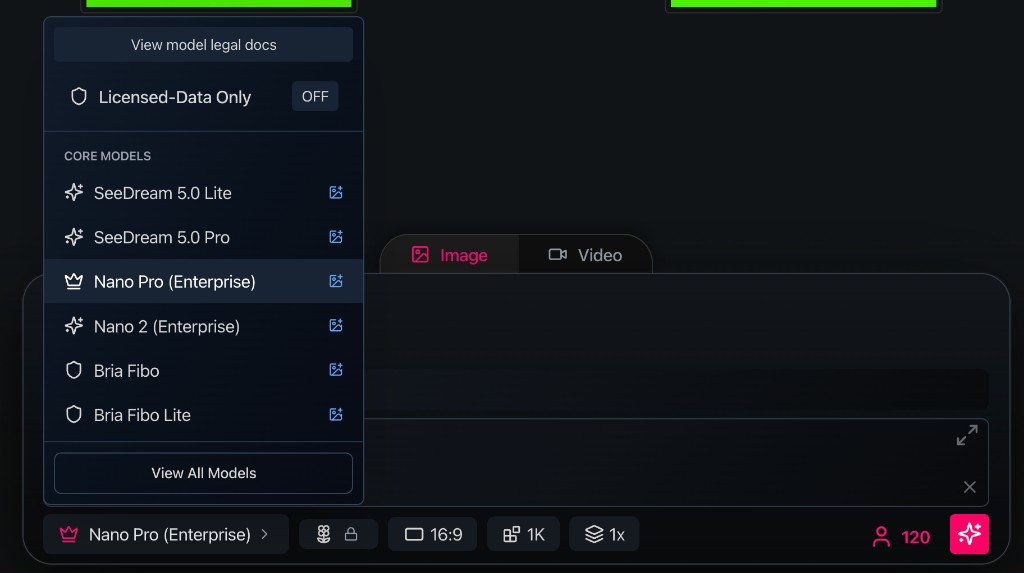
The open menu shows View model legal docs, model groups such as Core Models, and View All Models. The bar below displays the active model, aspect ratio (16:9), resolution (1K), batch count (1x), credit cost, and the pink Generate button.
Switch modes with the Image (I) or Video (V) tabs first — each mode has its own model list.
Model groups
Models are grouped for scanning, for example:
- Core Models
- Nano Models
- SeeDream Models
- Flux Models
- Other Image Models / Other Video Models
Exact groups depend on what's enabled for your workspace and folder.
Reading a model row
Each model shows:
- Name — user-facing label (e.g. Kling, SeeDance, Veo, Flux)
- Premium badge — higher credit cost tier on some models
- Capability icons:
- ∞ — draft/unlimited mode available under an existing plan agreement, where shown; this is not part of the current Free/Paid signup offer
- Image icon — accepts reference images
- Audio icon — can generate synchronized audio (video)
Model legal documentation
Select View model legal docs for each model’s terms and compliance details.
Restricted models
Some models appear greyed out with a reason:
| Message | Meaning |
|---|---|
| Paid access required | This model is outside the Free starter selection |
| Blocked by folder policy | Project or folder model policy excludes this model |
| Not assigned by Site Admin | The workspace hasn't assigned this model to you |
| Enterprise entitlement messages | Vertex/Google or other enterprise-gated models |
Folder Share settings include a Models tab where admins set allowed models per shared folder.
Choosing a model
Quick guidance:
| Goal | Starting point |
|---|---|
| Hero still image | Core image models or SeeDream — see Writing Prompts |
| Image-to-video, high fidelity | Kling family — see Video Best Practices |
| Long clips, edit, or extend video | Seedance 2.5 — create, edit, or extend with rich references |
| Video with audio | Kling 2.6, SeeDance 1.5, Veo 3.1, Seedance 2.5 |
| Lip-sync dialogue | Veo 3.1 at 720p |
| Fast iteration | Use a suitable lower-cost model and shorter test generations |
Always verify the model in the picker — availability changes by workspace, plan, and policy.
Credit cost indicator
Next to the model picker, a credit indicator shows the cost of the current settings and the source that funds them. Current Free/Paid workspaces use their shared credit balance.
In an existing personal or shared-project setup, you may also see:
- Personal — user icon + number
- Project pool — users icon + number
- Unlimited/draft — infinity icon + 0
Hover or click the indicator to open the credit source popover.
Credit sources
For a Free/Paid production workspace, generation uses workspace shared credits. Personal subscriptions and credits, where retained under an existing agreement, stay separate.
The following source choices apply to existing personal or shared-project setups where the interface shows them:
| Source | Label | When to use |
|---|---|---|
| Personal | Personal + your balance | Existing personal-workspace projects, where permitted |
| Project pool | Project pool + balance | Shared projects with a pooled credit account |
Switch with Use on the row you want active. The selected row shows Active.
Empty project pool
Pool is empty. Generation will prompt to use personal credits. — add pool credits via Add (owners/admins) or switch to personal before generating.
Production workspace members: generations route through workspace shared credits and policies. Do not expect a separate personal balance to fund that workspace automatically.
Workspace owners and authorised administrators manage subscriptions and eligible credit-pack purchases through Workspace billing & credits in the workspace menu. Free workspaces need a Paid upgrade before buying packs.
Unlimited / draft mode
Some existing Individual agreements retain unlimited or draft generation on selected models under their applicable fair-usage terms. The ∞ icon in the model row marks availability where that agreement applies. Free starter credits and current Paid subscriptions are metered; neither should be treated as an unlimited-generation offer.
If your existing agreement includes drafts, use them to explore and switch to standard credit generation for finals or premium resolutions. Check the terms shown for that workspace.
Before you generate
- Confirm credit source and balance
- Confirm model matches your reference setup (some need start frames)
- Check resolution — wrong resolution can waste credits on poor results
- For video, read Video Generation Best Practices
Failed generations may still reserve and release credits depending on failure stage — refresh your balance from the profile menu if something looks off.
Ani and credits
When Ani proposes Run image generation or Run video generation, it runs a credit preflight first. You confirm the action explicitly — credits are not spent without approval.
Component promotion and reference-sheet processing can also spend credits; Ani labels these in the action proposal.
Related
- The Generator
- Setting Up Your Account — credits overview
- Common Issues — missing credits after purchase
Looking for something else?
Tags
Related Articles
Seedance 2.5: Create, Edit & Extend
Use Seedance 2.5 for longer clips, richer references, and three video tasks — create new video, edit an existing clip, or extend it forward or backward
Asset Library (Create)
Your hub for generating, organising, and managing project assets — with deep guides for every part of the workspace
Uploads & References
Upload files, manage the reference strip, and feed images into the generator