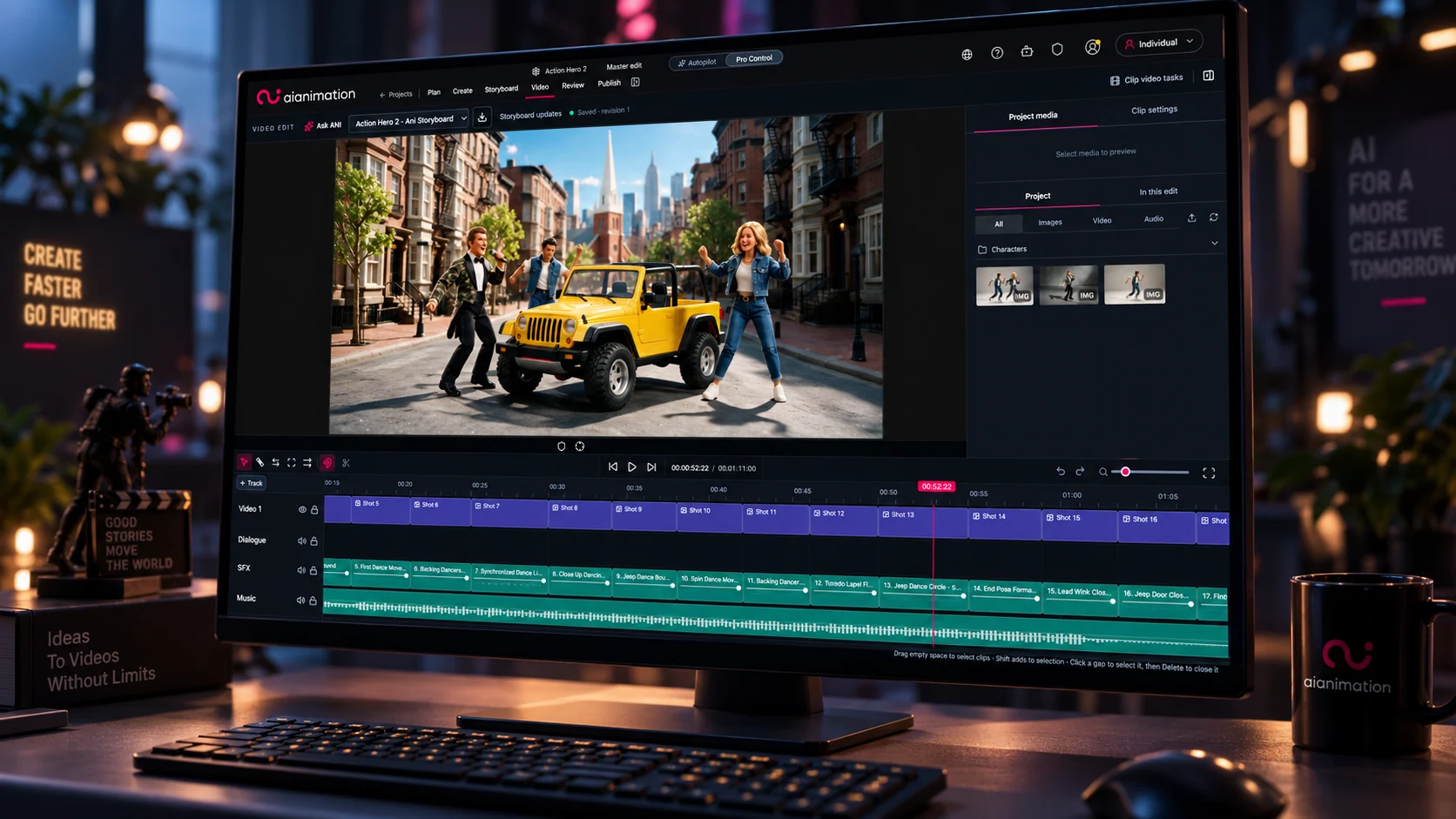
SeeDream 5.5 is now available on AI Animation, alongside the existing SeeDream image models. Create from a text prompt, work with up to 10 reference images, or generate a transparent PNG ready to use in a composition.
You’ll find it in the normal Image generator. Start with a character concept, product image or storyboard visual, then add references to guide the next version. To make changes to an existing image, use it as a reference and describe what you want to change in the prompt.
Choose the background your asset needs
The Background menu gives you three choices, each with its own icon:
- Auto lets the model choose the background from your prompt.
- Opaque (Filled in) requests an image with a filled background.
- Transparent requests a PNG with transparency around the subject.
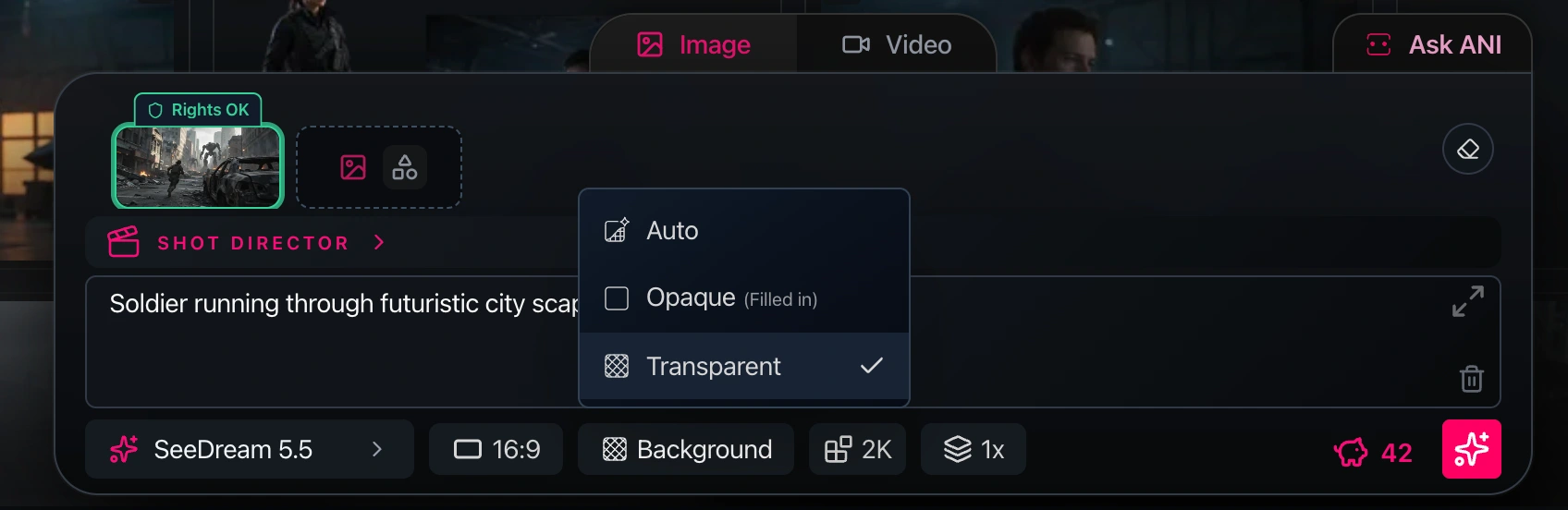
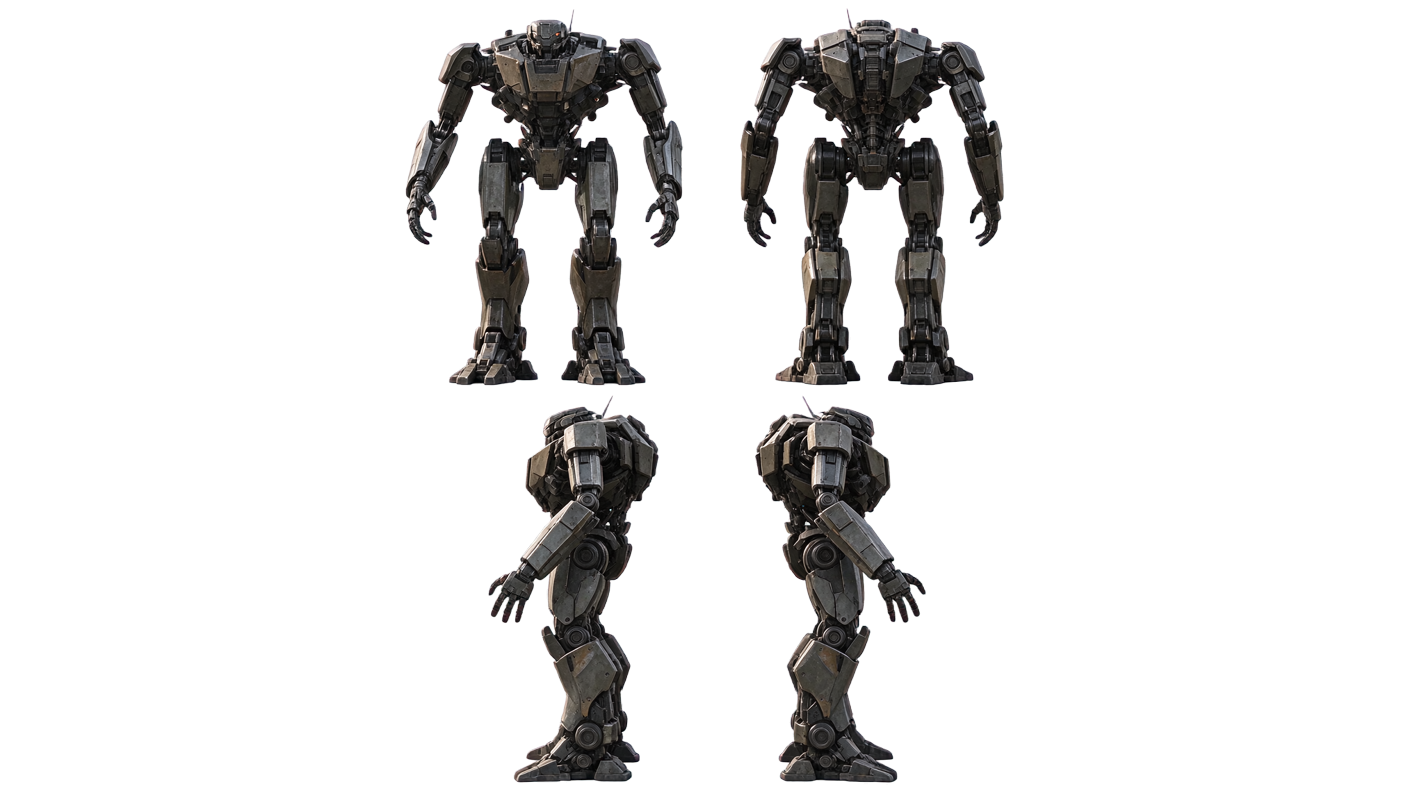
Transparent output is useful for isolated characters, products and graphic elements you want to place over another image or video. Choose it before generating, and describe the subject and composition in your prompt.
Set the output and review the price
SeeDream 5.5 offers 1K, 1.5K and 2K output options, with 2K as the default. Choose your aspect ratio, output setting and number of images, then review the displayed credit price before pressing Generate.
The price updates as you change the request. Reference images contribute to the cost, so check the current total when adding references or requesting more than one output.
To try it, open your project’s Create gallery, switch to Image, and select SeeDream 5.5 from the model menu. Add a prompt and any references, choose your settings, then generate when you’re happy with the price.
Model access follows your workspace’s settings. If SeeDream 5.5 isn’t listed, ask your workspace admin to check its model availability.
Keep going
Learn more
Help & Documentation
Generate AI Images and Videos in the Asset Library
Generate images and video from the bottom panel — modes, prompts, references, and visibility
Help & Documentation
Uploads & References
Upload files, manage the reference strip, and feed images into the generator
Help & Documentation
Models & Credits
Choose available models, understand generation costs, and use your workspace's shared credits